
Live TV, Cloud DVR and on-demand shows on your TV, phone, tablet, or streaming stick with local support and no contracts.
$30/month
$65/month$55.25/month
* Each account includes 5 hours of Cloud DVR. You can upgrade to 100 hours for an additional $6/month, or 200 hours for $12/month.
** Watch on up to 2 screens at once. Add extra simultaneous streams for an additional $5/month each.
*** Intro price of $55.25/month applies for the first 12 months for new FlexChoice TV customers; regular price of $65/month applies thereafter. Requires FlexNetworks Internet with a minimum download speed of 100 Mbps. Prices exclude applicable taxes and are subject to change.
****Save with our combined streaming and DVR bundles. Choose 3 streams with 100 hours of DVR for $8/month, or upgrade to 4 streams with 200 hours for $15/month.
CTV Life, FX, American Heroes, Adult Swim, Out TV
1 of 5 already in Complete
FlexChoice TV is live TV streaming from Flexnetworks, powered by our partner MSC TV through the StreamMSC app. You deal only with Flexnetworks – we handle sales, billing and support.
Yes. FlexChoice TV is available exclusively to FlexNetworks Internet customers and requires a minimum internet download speed of 100 Mbps.
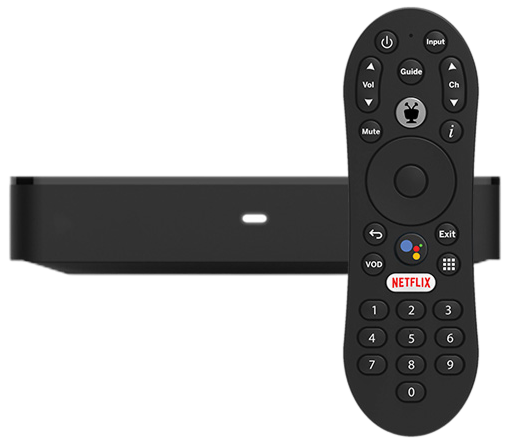
No. Download the StreamMSC app to a device you already own, or rent our TV Set-Top Box ($8/month, rent to own) to watch on any TV.
| Category | Supported devices |
|---|---|
| Set-top box | Flexnetworks TV Set-Top Box (Evolution Digital Force 1, Android TV) |
| Streaming players | Amazon Fire TV Stick / Fire TV Cube, Apple TV (4K & HD), Google Chromecast with Google TV |
| Smart TVs | Samsung and LG TVs running Android TV / Google TV, Fire TV Edition smart TVs |
| Phones & tablets | iPhone and iPad (iOS 14+), Android phones and tablets |
Not supported: Roku devices and smart TVs running Amazon Vega OS. (Check your Fire TV OS under Settings > My Fire TV > About.)
Search “StreamMSC” in your device’s app store – Apple App Store, Google Play, or the Amazon/Fire TV store.
Often, yes. If your TV runs Android TV, Google TV, Fire TV, LG or Samsung Tizen (2024+), you may be able to install it directly. We can only guarantee performance on the supported devices listed above.
No. Setup is self-install, with easy how-to videos and a getting-started guide for the set-top box. Our team can walk you through it by phone.
It’s optional but recommended. Signing in lets you download extra apps from Google Play and sync Google services.
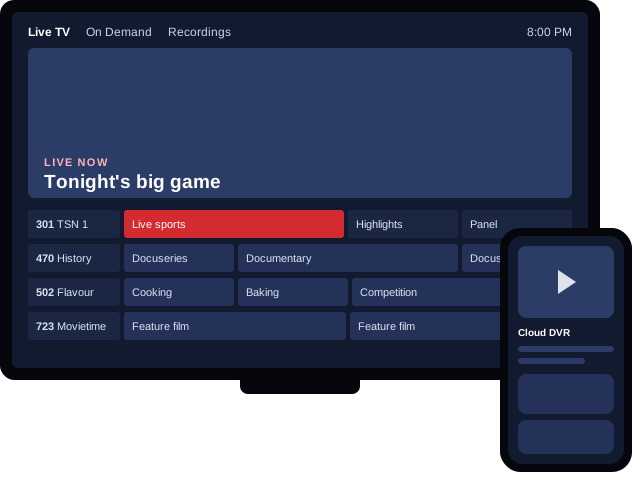
Yes. You get a familiar guide grid, traditional channel numbers and simple remote navigation, plus modern streaming extras.
Essentials (55 channels, $30/month) includes local Saskatchewan stations – CTV Regina, Saskatoon and Prince Albert, Global Regina and Saskatoon, CBC Saskatchewan and Citytv – plus community channels, emergency broadcast alerts and local weather. View the Essentials channel lineup.
Yes. Start with Essentials or Complete, then add Theme Packs or single channels.
No. All plans are month-to-month, allowing you to change packages, Theme Packs, and add-ons at any time. However, please note that some networks require a minimum 30-day subscription before you can make changes, which prevents short-term signups for specific events.
Usually within a few hours. To see it right away, sign out of the StreamMSC app and sign back in.
The base package includes 2 simultaneous streams. You can add extra streams for $5/month each, up to a maximum of 4 at once. Your account can still be logged in on as many devices as you like.
Yes! With Out of Home, you can stream most of your lineup and live sports on your phone or tablet wherever you have cell phone coverage or internet. Just check the Out of Home column in your channel lineup, as a few channels aren’t available outside the home.
Yes. You can pause, rewind and fast-forward live TV and recordings, where the broadcaster allows it.
When you tune to a show already in progress, you’ll see “Play from beginning” for a few seconds. Missed it? Press pause and it appears again. Some broadcasters, including all Corus channels, don’t allow Restart.
Replay (also called Lookback) lets you scroll left in the guide to watch shows that already aired. Each broadcaster sets how far back you can go; some, including Corus channels, don’t allow it.
Watch up to four live channels at once—perfect for game day. Select MultiView from the guide; audio plays from the highlighted screen. Please note this feature is available exclusively on the TV Set-Top Box, and not all devices support it.
Yes. Search once to find titles across live TV and streaming services like Netflix, Prime Video, Disney+, Tubi, Apple TV and Plex.
Up to 5.
Yes, you can set parental controls through your device’s settings menu.
While watching, press OK (or open the playback controls), go to audio options and select the subtitle or secondary audio track.
Press the TiVo button (the robot icon) to access the StreamMSC Home screen, then scroll to Recently Watched Programs.
Leagues and rights-holders set regional blackouts. Other channels, and other shows on the same channel, keep working normally.
Your recordings are stored securely online instead of on a box in your home, so you can watch them on any supported device.
Every account includes 5 hours. Add 100 or 200 hours, up to a 200-hour maximum.
You’ll be asked to delete recordings or turn on “overwrite oldest recordings.” Series recordings pause until you free up space. Use “Save” to protect recordings you want to keep.
Only your oldest recordings over the new limit are removed. For example, going from 200 to 100 hours with 150 hours recorded removes the oldest 50 hours.
Most broadcasters block fast-forward on paused, restarted or replayed shows. Record the show first and fast-forward works on the recording.
For any TV issue, first restart your set-top box or streaming device. It fixes most problems.
Netflix preloads 15+ minutes of video, which hides Wi-Fi hiccups. Live TV stays in sync with the live event and holds about 12 seconds, so brief Wi-Fi dips can cause a pause. Over 90% of buffering starts on the home network.
Check your TV or soundbar is on the right input; if you use an optical cable, remove the plastic caps from both ends. Apple HomePod users: update Apple TV, HomePod and iPhone, re-add the HomePod in the Home app, then sign out of and back in to the StreamMSC app.
Restart your device. Plug its power cable into a wall outlet, not the TV’s USB port. Still happening? Contact us.
Select “Try Again,” or press Back to clear the message. If it’s only one channel, let us know.
You’ve hit your screen limit. Sign out of the app on another device and wait 30 seconds. Can’t reach that device? Reset your password at smarttv.streammsc.ca/signin to sign out everywhere.
Write down the code (e.g. AUTH-006, NET-003, MED-014) and share it with our support team so we can fix it faster.
Try these in order: sign out and back in → force stop the app → clear the app cache → unplug your device for 30 seconds → reinstall the app.
Replace the batteries. Still not working? Call us for a replacement.
The set-top box has an optical audio output that works with most sound systems. Check your audio device’s manual for setup.
Reset or change your password at streammsc.ca in a web browser.
Available 24/7/365
Mon - Fri, 9:00 AM - 5:00 PM
home.support@flexnetworks.ca